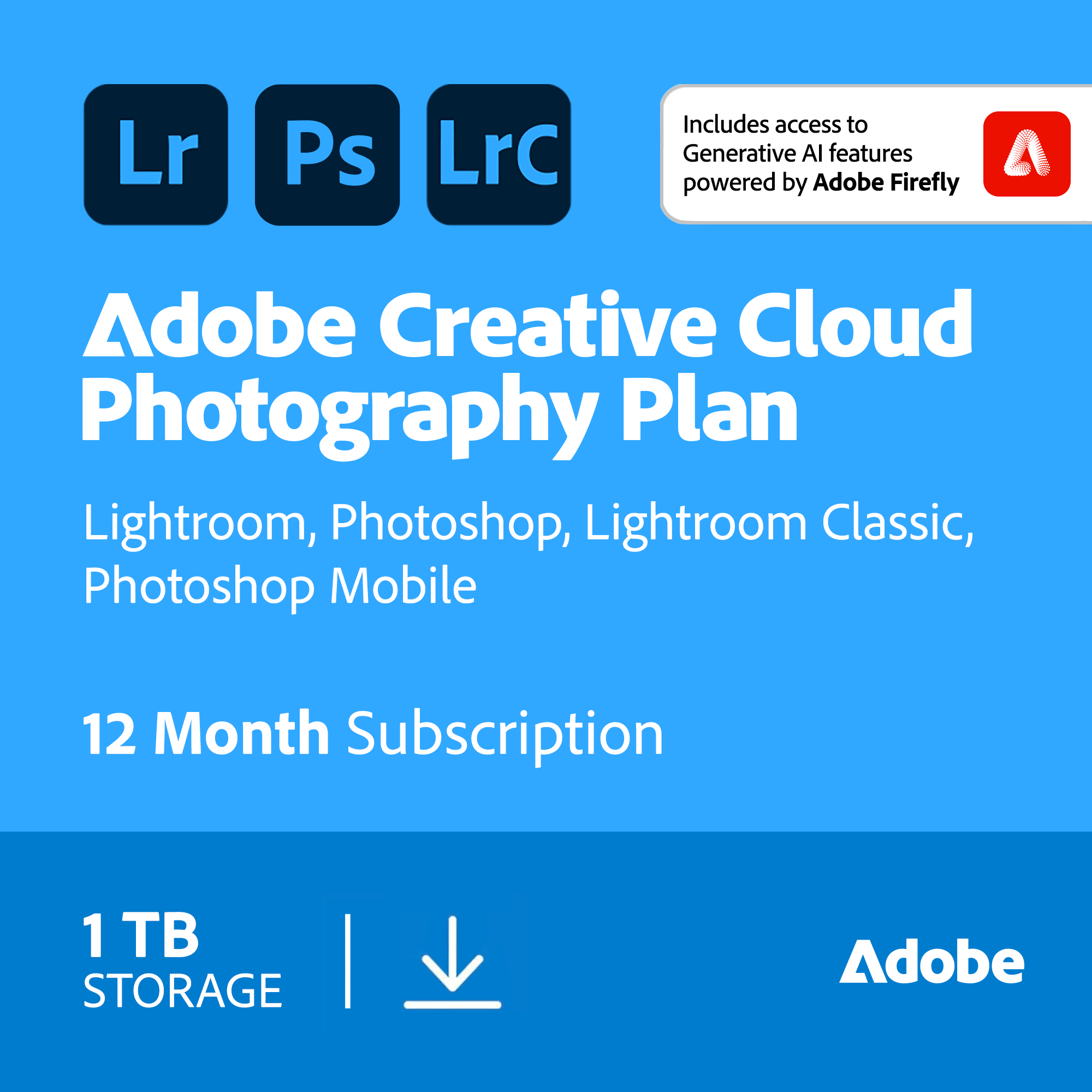
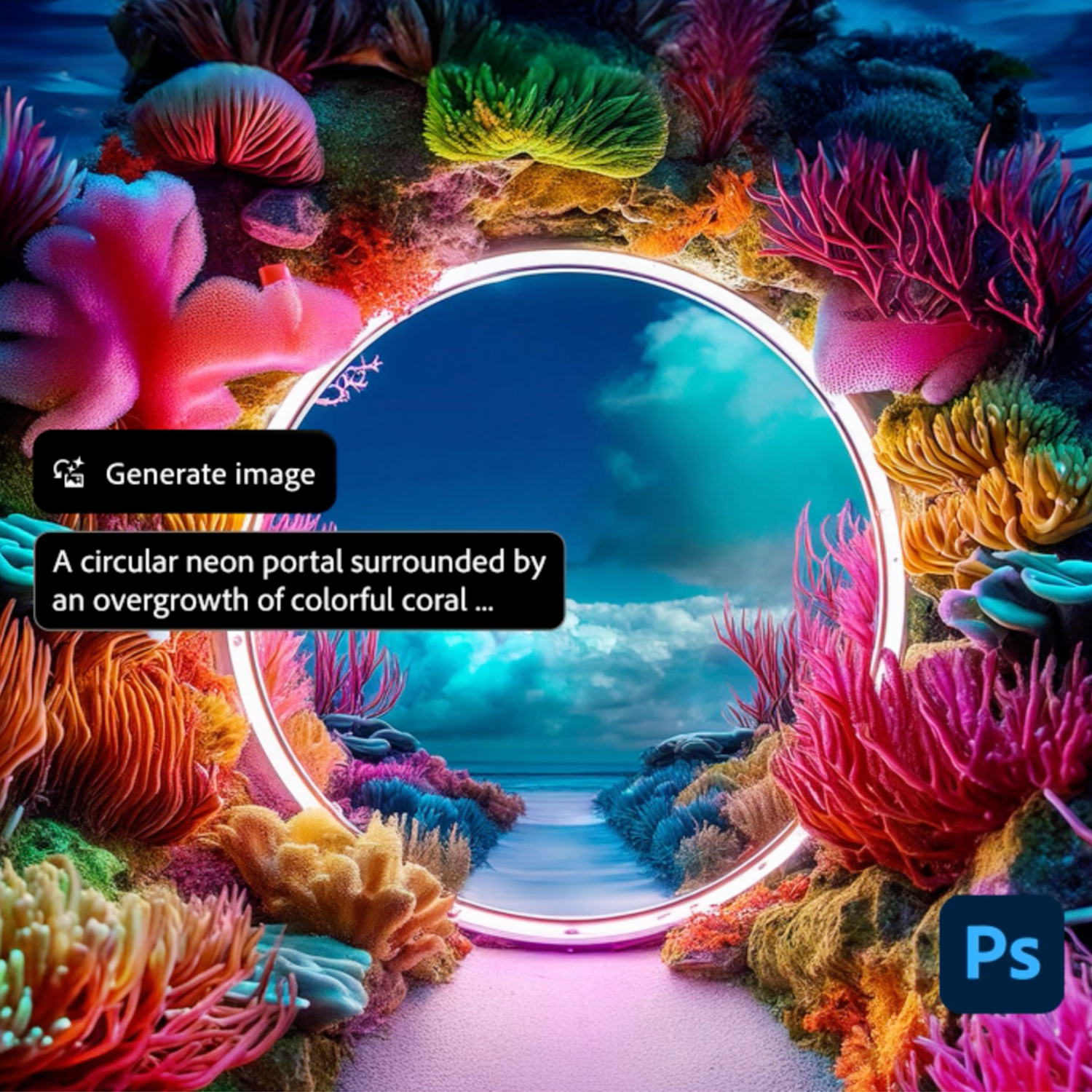
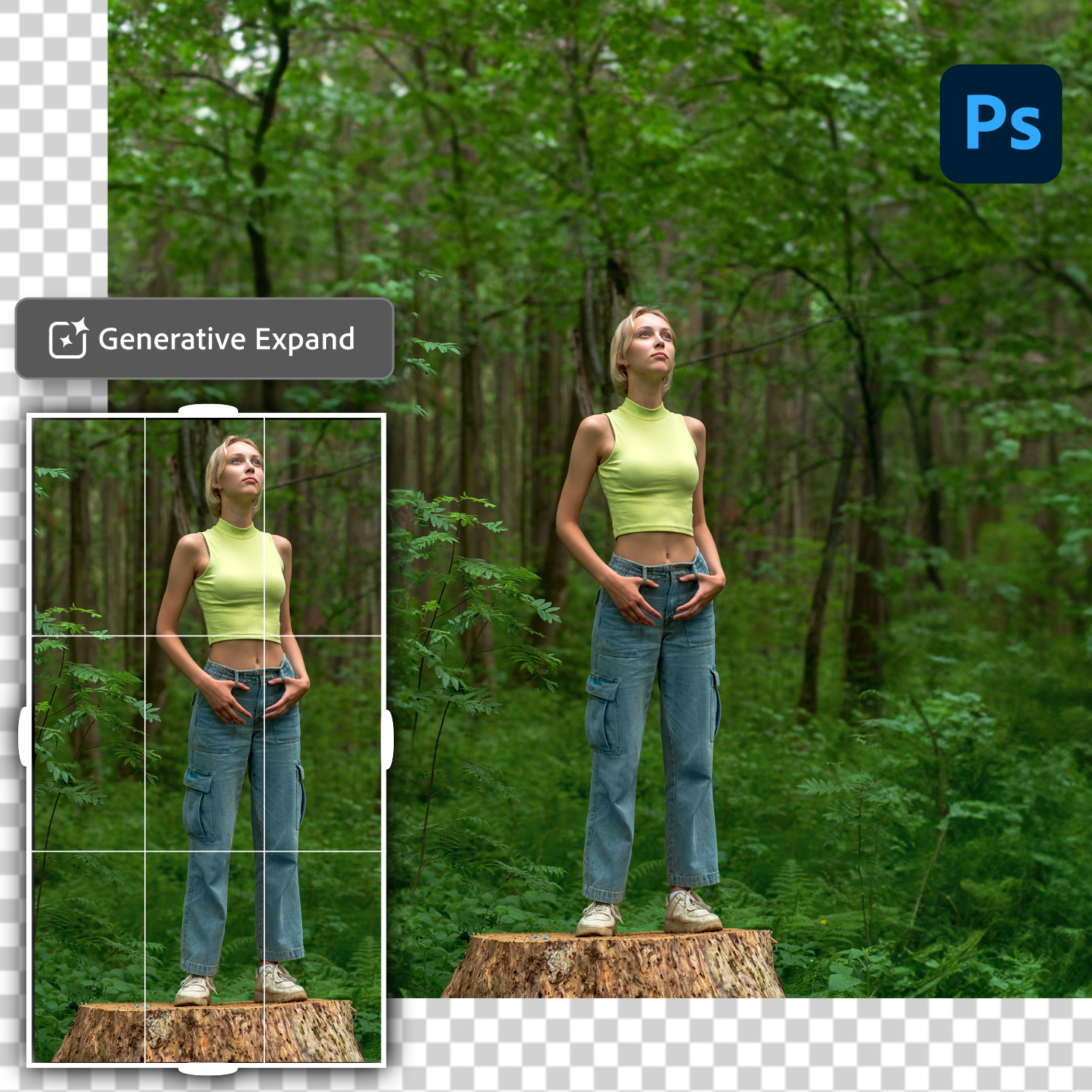
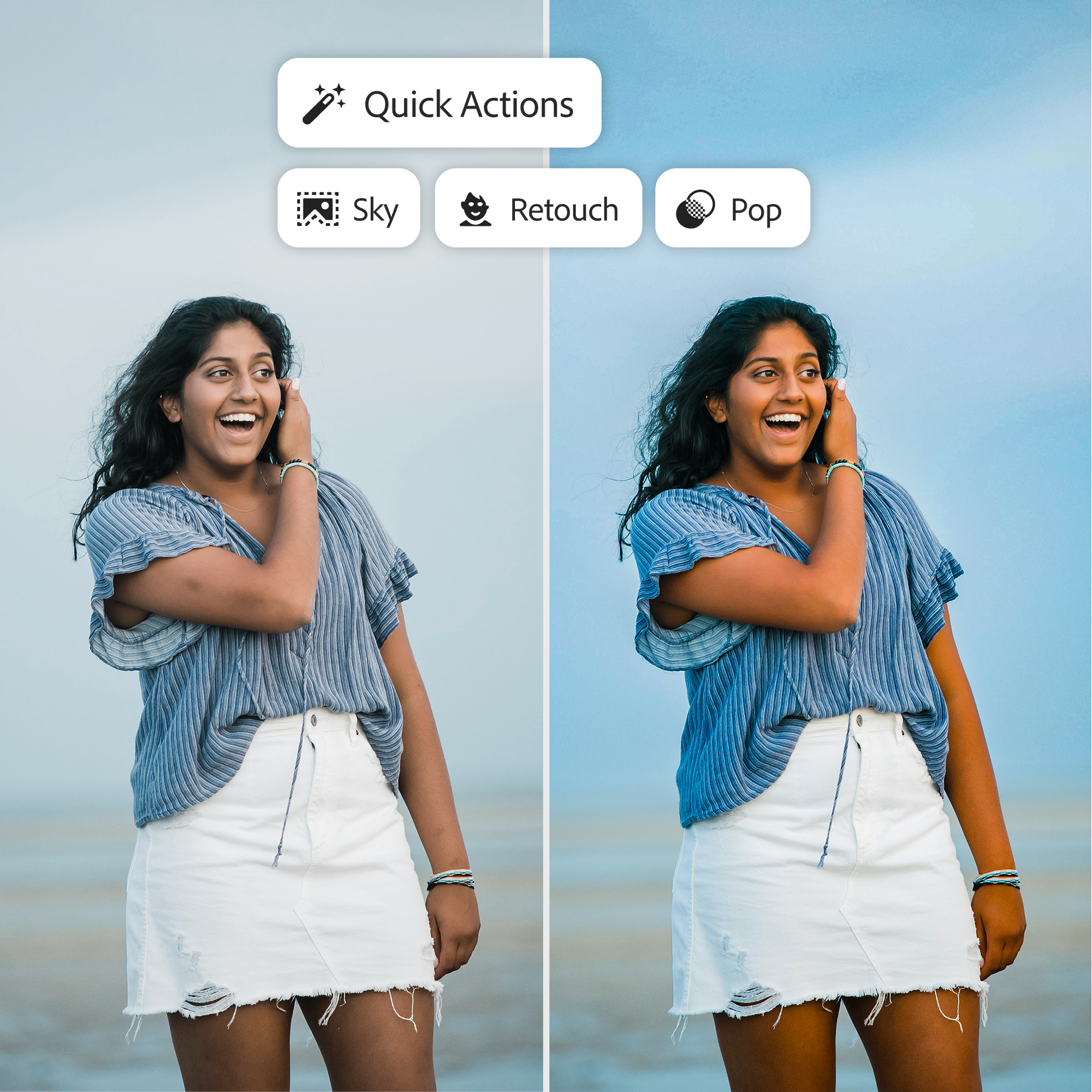
Just purchased Adobe Creative Cloud Photography? Here’s how to get started with your subscription.
Step 1: Check Your Email for the Product Code
- Open the email that includes your Adobe Creative Cloud Photography Plan 1TB activation code.
- Copy the product code for use in the next steps.
Step 2: Go to Adobe’s Redemption Page
- Visit: https://redeem.adobe.com
- This is where you’ll enter and activate your product code.
Step 3: Sign In or Create an Adobe Account
- You’ll be prompted to sign in with your Adobe ID.
- If you already have an Adobe account, log in.
- If you don’t, click “Create an account” and follow the steps to register.
Step 4: Redeem Your Product Code
- After logging in, enter the product code you received in your email.
- Click “Redeem” to activate your subscription.
- Adobe will confirm the activation and show the subscription details (e.g., valid for 1 year with 1TB of cloud storage).
Step 5: Download Adobe Creative Cloud App
- If not already installed, go to: https://creativecloud.adobe.com/apps/download/creative-cloud
- Download and install the Creative Cloud desktop app.
Step 6: Install Your Photography Apps
- Open the Creative Cloud app and sign in.
- Look for apps included in your Photography Plan—typically:
- Adobe Photoshop
- Adobe Lightroom
- Lightroom Classic
- Click “Install” next to each app you want to use.
Step 7: Start Creating
- Your Photography Plan with 1TB cloud storage is now active for one year.
- You can start editing and organizing photos with industry-leading tools and store them securely in the cloud.
If you face any activation issues, visit Adobe Help Center or contact Adobe support directly for assistance.